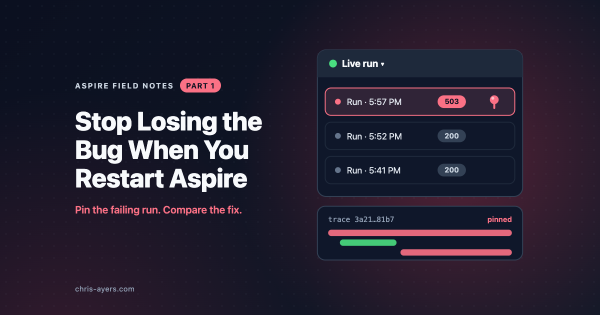
You reproduce an intermittent failure, change one line, and restart the application. This time the request works. Now you need the old trace to work out why.
If it disappeared with the restart, you’re left comparing the new run with whatever you remember. Aspire 13.6’s dashboard keeps completed runs, so you can go back to the failed request instead.1
In Part 1, we covered creating and running Aspire apps. In Part 2, we explored deployment and CI/CD. Now let’s look at one of Aspire’s most exciting features: MCP (Model Context Protocol) support for AI coding agents.
In Part 1, we covered the basics of the Aspire CLI: creating projects with aspire new, adding Aspire to existing apps with aspire init, running with aspire run, and managing integrations with aspire add and aspire update. Now let’s dive into deployment and CI/CD pipelines.
This blog was posted as part of the C# Advent Calendar 2025. Make sure to check out everyone else’s work when you’re done here
The Aspire CLI is a cross-platform tool for creating, managing, and running polyglot Aspire projects. This post covers the core commands you’ll use day-to-day.
How I architected a single codebase to seamlessly switch between Azure OpenAI, GitHub Models, Ollama, and Foundry Local without touching the API service
When building my latest .NET Aspire application, I faced a common challenge: how do you develop and test with different AI providers without constantly rewriting your API service? The answer turned out to be surprisingly elegant - a configuration-driven approach that lets you switch between four different AI providers with zero code changes.