
This blog was posted as part of the Festive Tech Calendar 2022. I really want to thank the organizers for helping set this up!
Look for the hashtag #FestiveTechCalendar2022 on social media! Make sure to check out everyone else’s work when you’re done here
This is part 1 of the Secure Terraform series. You can read the series of articles here:
- Secure Terraform - Part 1 - tfsec
- Secure Terraform - Part 2 - tfsec customization
- Secure Terraform - Part 3 - terrascan
- Secure Terraform - Part 4 - checkov
- Secure Terraform - Part 5 - terraform state
Introduction#
Securing Terraform starts before we even deploy anything. Our tooling is a great place to start! We can leverage one or more static code analyzers to look for misconfigurations, security issues, and other problems. Many of these great tools not only plug into our CI/CD pipeline, they also work within our IDEs. This allows us to catch issues while we work. We can also leverage pre-commit hooks to catch things before we even commit our code. With Cloud infrastructure, its easy to make mistakes, and these tools can help us catch them.
Today we are going to look at a one of these tools, tfsec, and how we can leverage it to secure our Terraform code. I’ll work through the rest of the ones in the list in follow on posts, but there are many more out there. I encourage you to check them out and see which ones work best for you.
tfsec#
Let’s start with tfsec by aquasecurity. Aquasecurity supports multiple amazing tools like trivy and tfsec. Tfsec is an open-source tool available on GitHub at https://github.com/aquasecurity/tfsec. The docs are hosted at: https://aquasecurity.github.io/tfsec/. There are some great guides for installing it and configuring it for GitHub Actions. Tfsec even has an integration with GitHub Advanced security to show the results of the scan in the security tab of the repository.
Installation#
We can run tfsec from a docker container or we can install it locally via homebrew, chocolatey, go, or the releases page.
After tfsec is installed (or docker is setup), we can run it against our Terraform code. Running it with defaults is quite easy, just invoking the command tfsec will run it against the current directory. If it finds files it will scan them and output the results. By default it checks all rules and outputs all severities found.
Running tfsec#
Let’s take a look at the output of tfsec against a simple Terraform file:
resource "azurerm_storage_account" "sa" {
  name                     = "samplesa${random_uuid.uuid.result}"
  resource_group_name      = azurerm_resource_group.rg.name
  location                 = azurerm_resource_group.rg.location
  account_tier             = "Standard"
  account_replication_type = "LRS"
}
Running tfsec against this file produces the following output:
$ tfsec

Result #1 CRITICAL Storage account uses an insecure TLS version.
─────────────────────────────────────────────────────────────────────────────────────────
  insecure-terraform/main.tf:8-14
─────────────────────────────────────────────────────────────────────────────────────────
    8    resource "azurerm_storage_account" "sa" {
    9      name                     = "samplesa${random_uuid.uuid.result}"
   10      resource_group_name      = azurerm_resource_group.rg.name
   11      location                 = azurerm_resource_group.rg.location
   12      account_tier             = "Standard"
   13      account_replication_type = "LRS"
   14    }
─────────────────────────────────────────────────────────────────────────────────────────
          ID azure-storage-use-secure-tls-policy
      Impact The TLS version being outdated and has known vulnerabilities
  Resolution Use a more recent TLS/SSL policy for the load balancer

  More Information
  - https://aquasecurity.github.io/tfsec/latest/checks/azure/storage/use-secure-tls-policy/
  - https://registry.terraform.io/providers/hashicorp/azurerm/latest/docs/resources/storage_account#min_tls_version
─────────────────────────────────────────────────────────────────────────────────────────


  timings
  ──────────────────────────────────────────
  disk i/o             28.432µs
  parsing              509.357µs
  adaptation           93.3µs
  checks               5.59119ms
  total                6.222279ms

  counts
  ──────────────────────────────────────────
  modules downloaded   0
  modules processed    2
  blocks processed     12
  files read           7

  results
  ──────────────────────────────────────────
  passed               7
  ignored              0
  critical             1
  high                 0
  medium               0
  low                  0

  7 passed, 1 potential problem(s) detected.
As you can see, tfsec found a potential problem with the TLS version being used. This could be a critical issue and should be addressed. We can see the ID of the rule, the impact, and the resolution. We can also see a link to the documentation for the rule and the link to the documentation for the resource.
I can also apply a custom configuration to tfsec to fine tune how I want to scan my code. This can be either a file I pass to tfsec or a config.json or config.yml inside a .tfsec directory. We could override the minimum severity to only show critical issues, or we could ignore a specific rule.
If I had misconfigured my storage account to accept traffic on http instead of HTTPS, tfsec would have found that as well. But maybe I don’t agree with the default severity of that rule. I can override the severity of the rule to be critical instead of high.
severity_overrides:
  azure-storage-enforce-https: CRITICAL
minimum_severity: MEDIUM
I’ve got a few simple misconfigurations checked into my sample repository at secure-terraform-on-azure. They aren’t on the main branch, but the demos branch.
VSCode#
What about adding tfsec to VSCode? Well, we can install the tfsec extension. This will use the installed version of tfsec to scan our code. It will also show the results so we can see them right in our editor and go to the line where the issue is.
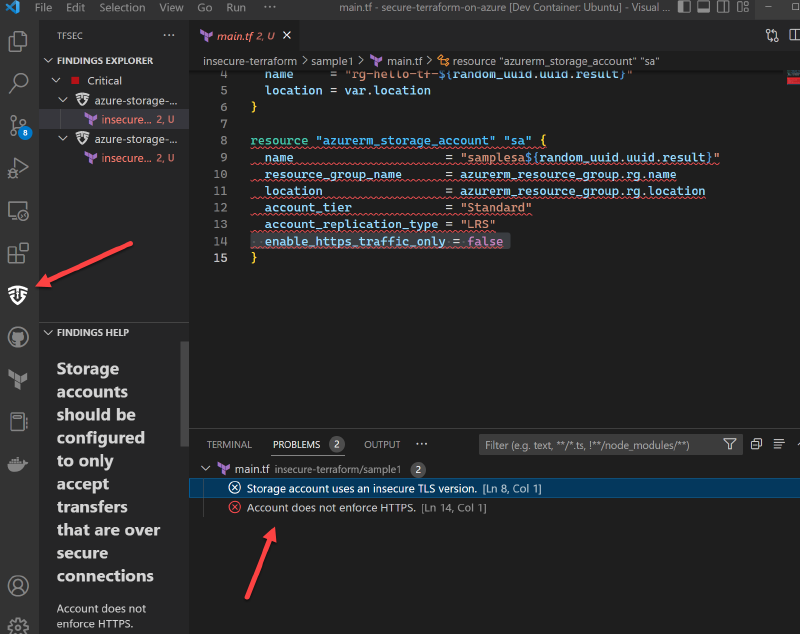
Great! Now we can see the issues right in our editor. But what if we forget to check the problems? How do we catch the issues and resolve them in our pipeline?
GitHub Actions#
Aquasecurity has provided a few GitHub Actions and sample workflows to scan our terraform during every pull request. We can use the tfsec-action to scan our code.
name: tfsec
on:
  push:
    branches:
      - main
  pull_request:
jobs:
  tfsec:
    name: tfsec
    runs-on: ubuntu-latest

    steps:
      - name: Clone repository
        uses: actions/checkout@master
      - name: tfsec
        uses: aquasecurity/tfsec-action@v1.0.0
Now because I’ve got some tf nested, I added the following line:
additional_args: --force-all-dirsAll of the available options and parameters are documented on the actions page.
This will run tfsec against our repository on every check-in to main and every pull request. If we have insecure code, it will fail the workflow.
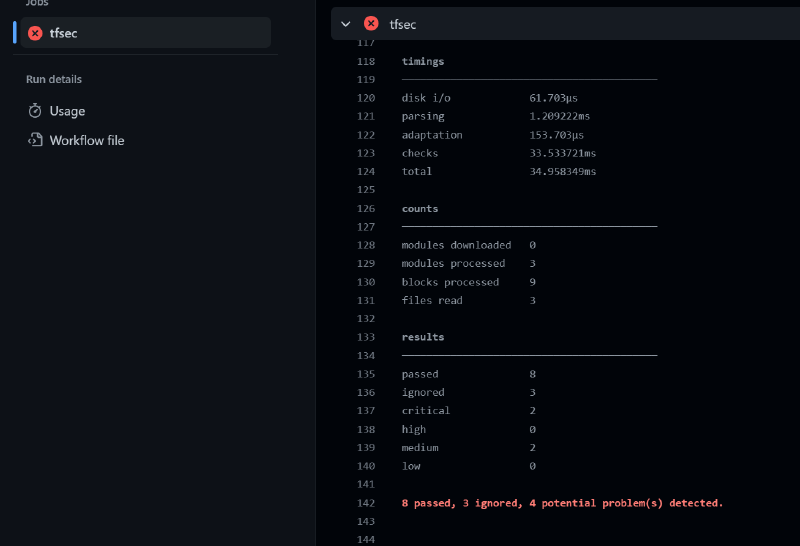
There is another action, tfsec-pr-commenter-action that is supposed to automatically add comments to the pull request with the results of the scan. I haven’t been able to get it to work because of my file nesting, but I’m sure it will be fixed soon.
Pre-commit Hooks#
The last thing I want to talk about is pre-commit hooks. Pre-commit hooks are a way to run a script or command before you commit your code. This is a great way to make sure you don’t commit any code that doesn’t pass your checks.
There is a great framework for running pre-commit hooks called pre-commit. It is a python package that you can install with pip. Once you have it installed, you can add a .pre-commit-config.yaml file to your repository. This file will contain the hooks you want to run.
There is a project for setting up pre-commit hooks to scan terraform. It is called pre-commit-terraform. It will run tfsec against your code and fail the commit if there are any issues.
This runs BEFORE you code gets committed and before it gets pushed to GitHub. Your CI/CD workflow will never run if the pre-commit hook blocks the commit.
Conclusion#
Terraform is a great tool for infrastructure as code. Leveraging smart tools like tfsec at various places in the development cycle can help you find and fix those issues before they become a problem. Join me again soon as we look at more tools to help you secure your infrastructure.