When I reset my PC or setup a new test machine, I always have to download a lot of software. In the past, I’ve used Chocolatey, Boxstarter, or just installed everything by hand.
I’ve played with winget, as part of the Windows Insider program. It was first announced in 2020 but was highlighted during Build 2021. With the release of Windows 11, I’ve setup machines a few times and wanted to automate the process using the new winget command.
What is Winget?#
WinGet is the command-line tool for the Windows Package Manager, found on GitHub. For a while, the only way to install it was to be a Windows Insider. I’ve also been able to use winget after fully updating a Windows 10 machine. You can also install it directly from GitHub.
What can Winget do?#
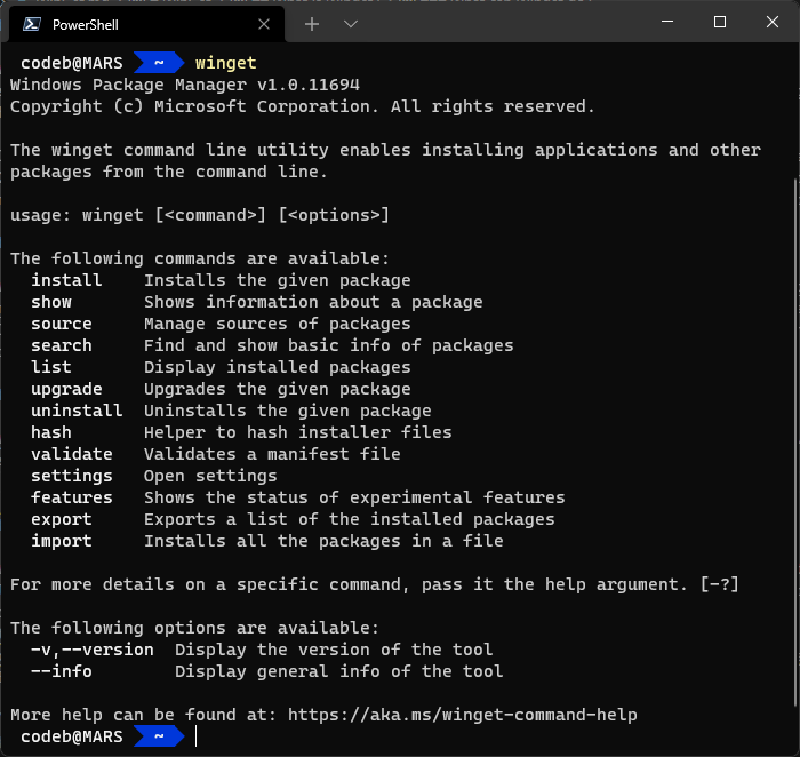
Winget allows you to easily search for and install software. You can upgrade and remove software as well.
Searching for Packages#
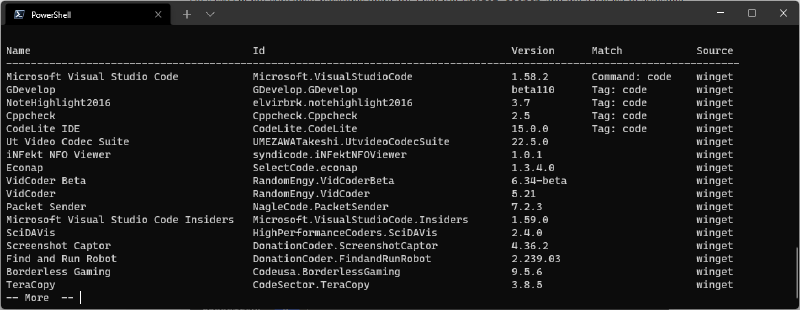
Let’s say i’m not sure what packages there are. I can run winget search and get a full list of available packages, or I can filter that by searching for a package name or partial name.
Showing Package information#
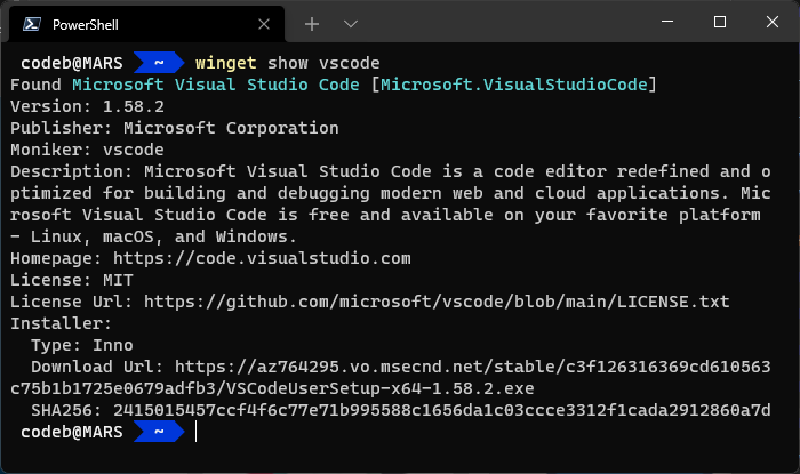
You can then show more details about a package, including publisher, URL, and hash.
Installing, Uninstalling and Updating Packages#
Installing packages is very easy, typically I just winget install X. This are options for using monikers (vscode) or full IDs (Microsoft.VSCode) as well.
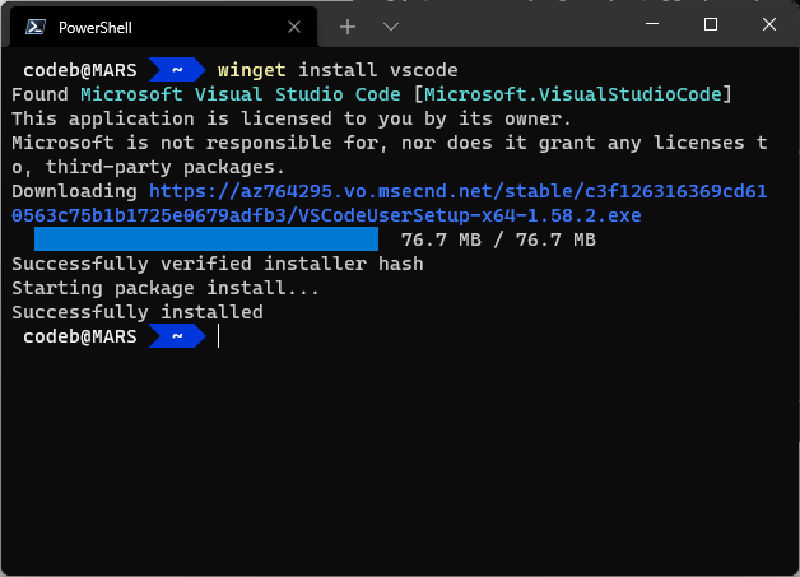
For some apps there might be popups or gui installers. I usually use winget install --silent X when installing multiple apps. It prevents the popups on most installers.
Similarly, upgrading and uninstalling packages is done through the winget upgrade X and winget uninstall X commands with similar options to the install command.
Older Method#
I originally started writing this a few months ago, before its 1.0 release. Since that time things have gotten much easier.
- If you update Windows 10 (1807 or higher) with all the normal patches, and you update the store Apps (including App Installer), you get winget
- winget added an import/export set of commands, allowing you to quickly install a series of apps on a second machine (or the same machine) and it will detect those already installed.
Please keep reading though if you find scripting and automation interesting. The script I walk through below can be found at Gist: Codebytes/DevMachineSetup.ps1.
Scripting the install#
While scripting the install, I ran into a few issues. For older versions of Windows, the latest versions from GitHub would not install due to missing dependencies. I also had to install the VC++ v14 Desktop Framework Package. Both of those steps are handled by the setup script below.
    #Install WinGet
    #Based on this gist: https://gist.github.com/crutkas/6c2096eae387e544bd05cde246f23901
    $hasPackageManager = Get-AppPackage -name 'Microsoft.DesktopAppInstaller'
    if (!$hasPackageManager -or [version]$hasPackageManager.Version -lt [version]"1.10.0.0") {
        "Installing winget Dependencies"
        Add-AppxPackage -Path 'https://aka.ms/Microsoft.VCLibs.x64.14.00.Desktop.appx'

        $releases_url = 'https://api.github.com/repos/microsoft/winget-cli/releases/latest'

        [Net.ServicePointManager]::SecurityProtocol = [Net.SecurityProtocolType]::Tls12
        $releases = Invoke-RestMethod -uri $releases_url
        $latestRelease = $releases.assets | Where { $_.browser_download_url.EndsWith('msixbundle') } | Select -First 1

        "Installing winget from $($latestRelease.browser_download_url)"
        Add-AppxPackage -Path $latestRelease.browser_download_url
    }
    else {
        "winget already installed"
    }
After getting it installed, I added some configuration to support the windows store. This is an experimental setting documented on GitHub: https://github.com/microsoft/winget-cli/blob/master/doc/Settings.md.
    #Configure WinGet
    Write-Output "Configuring winget"

    #winget config path from: https://github.com/microsoft/winget-cli/blob/master/doc/Settings.md#file-location
    $settingsPath = "$env:LOCALAPPDATA\Packages\Microsoft.DesktopAppInstaller_8wekyb3d8bbwe\LocalState\settings.json";
    $settingsJson =
    @"
        {
            // For documentation on these settings, see: https://aka.ms/winget-settings
            "experimentalFeatures": {
              "experimentalMSStore": true,
            }
        }
    "@;
    $settingsJson | Out-File $settingsPath -Encoding utf8
Finally I built up a list of packages to install. I’m using the winget command to install the packages. I originally had a simple list of packages, but added the optional source parameter to support installing from the Windows Store. Winget also doesn’t short circuit the install if the package is already installed, so I added a check for that. Winget today doesn’t output PowerShell objects or easily parseable output, so I just joined all the lines into 1 string and checked the contents.
    #Install New apps
    $apps = @(
        @{name = "Microsoft.AzureCLI" },
        @{name = "Microsoft.PowerShell" },
        @{name = "Microsoft.VisualStudioCode" },
        @{name = "Microsoft.WindowsTerminal"; source = "msstore" },
        @{name = "Microsoft.AzureStorageExplorer" },
        @{name = "Microsoft.PowerToys" },
        @{name = "Git.Git" },
        @{name = "Docker.DockerDesktop" },
        @{name = "Microsoft.dotnet" },
        @{name = "GitHub.cli" }
    );
    Foreach ($app in $apps) {
        #check if the app is already installed
        $listApp = winget list --exact -q $app.name
        if (![String]::Join("", $listApp).Contains($app.name)) {
            Write-host "Installing:" $app.name
            if ($app.source -ne $null) {
                winget install --exact --silent $app.name --source $app.source --accept-package-agreements
            }
            else {
                winget install --exact --silent $app.name --accept-package-agreements
            }
        }
        else {
            Write-host "Skipping Install of " $app.name
        }
    }
Removing Packages#
We can also remove unused windows applications that are installed by default. I combined some of the script found here as well: Uninstalling windows store apps using PowerShell. I don’t usually use the 3D printing apps, or the mixed reality stuff so they can go. And I don’t care about the solitaire collection.
    #Remove Apps
    Write-Output "Removing Apps"

    $apps = "*3DPrint*", "Microsoft.MixedReality.Portal"
    Foreach ($app in $apps)
    {
      Write-host "Uninstalling:" $app
      Get-AppxPackage -allusers $app | Remove-AppxPackage
    }
Running the script#
The script can be found at Gist: Codebytes/DevMachineSetup.ps1.
I learned how to run PowerShell from a gist from this great article: Run a PowerShell script directly from GitHub Gist.
You can get and run the entire script on a new machine by invoking the following command.
PowerShell -NoProfile -ExecutionPolicy Bypass -Command "iex ((New-Object System.Net.WebClient).DownloadString('https://gist.githubusercontent.com/Codebytes/29bf18015f6e93fca9421df73c6e512c/raw/'))"Note: After running this, you might need to restart your terminal or reboot the computer.