  1. Posts/

Presenting with VS Code - Screencast mode

·243 words·2 mins
Chris Ayers
Author
Chris Ayers
I am a father, nerd, gamer, and speaker.

I have been starting to speak and present a lot more, and was looking into great tools like Carnac and KeyPosé. But I just found out today about a feature I didn’t know existed inside Visual Studio Code, Screencast mode. This was introduced in January 2019. How did I miss it?

To enable and use Screencast mode, Open the command palette, Ctrl + Shift + P.

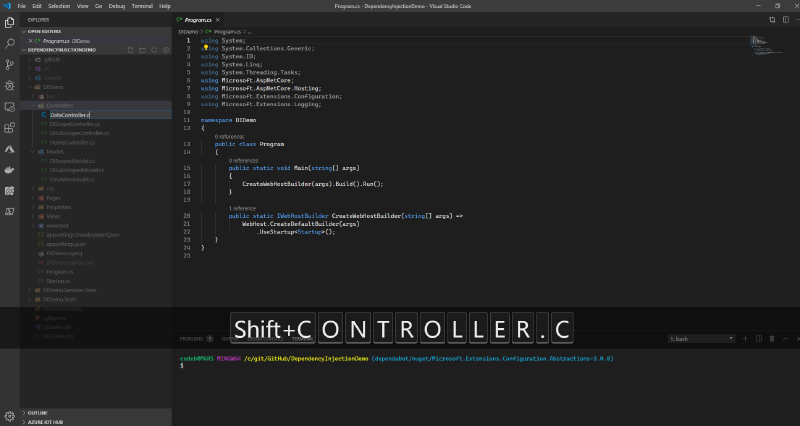
When first enabled, Screencast Mode is not what I wanted. It shows EVERY keypress. It also shows a little higher on the screen that I prefer. It also puts a little red circle everywhere I click the mouse, which is nice. Let’s configure it and see if we can clean up some of that. Open the command palette again (Ctrl + Shift + P) and go to the user settings.

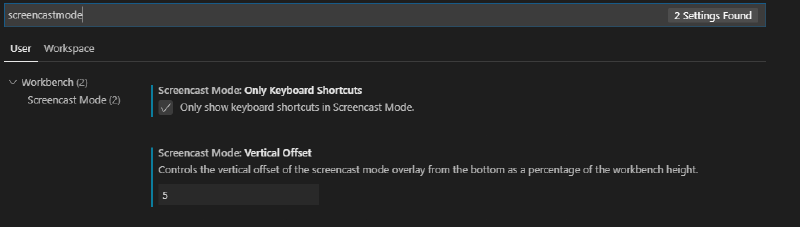
There aren’t a lot of options right now, but I only want to see keyboard shortcuts.. Ctrl+C, Ctrl+V, Alt+Shift+F. So I’ll check that, and I want it a little lower on the screen, so I lowered the default from 20 down to 5. Let’s see the finished product:
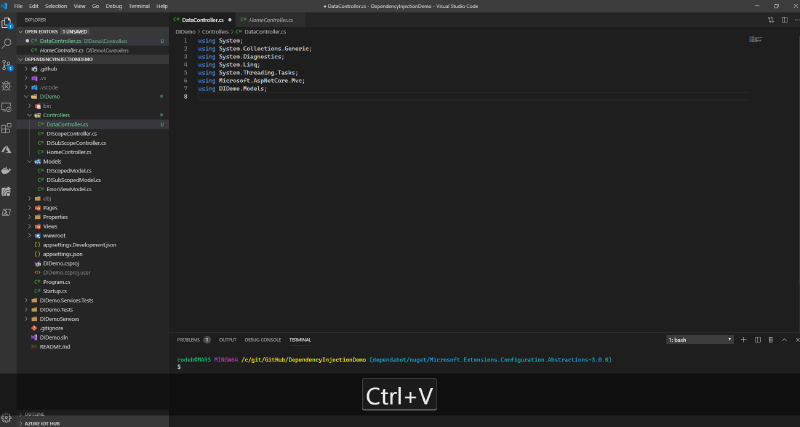
Awesome. I can now go on a mac, linux, or windows machine and have a consistent experience with sharing my keypresses and mouse clicks. If you present, live code, or give demos, this is a great feature to enable and I encourage you to do so. Seeing all the keyboard shortcuts people use is a great thing to learn.

Related

RESTful API Versioning

·505 words·3 mins
I’ve been a developer for a long time, writing APIs and clients to consume them. When an API is around long enough, it needs to change. I’ve versioned APIs in the past using a number of different techniques. Some successful, some painful. Now I realize this discussion is like the VI/Emacs conflict, the Tab/Space wars, and the Spanish Inquisition, but it is a good topic to look at. There are a few main styles when it comes to API versioning:

ARM - Part 3: Hook up the Pipes

·211 words·1 min
I’ve got a template straight from Microsoft. I want this wired into a CI/CD pipeline to I can play around and get quick feedback. I’m going to use Azure DevOps to help make all this possible. Let’s get those templates into a repository to get started. New repository, initialize it, add new files. Next, I’m going to create a new resource group to play around with my web app resources.

ARM - Part 2: Azure Quickstart Templates

·528 words·3 mins
Time to Dive in # I’m one of those guys that likes to learn by doing. Reading the documentation is great, and I do that a lot. But for me to really grok something, I need to play with it, run it, and probably blow it up. If you missed part 1, read along and come back. I need a WebApp setup for my sample project. I realized I can do it a few ways. Some of the ways are very manual, some are repeatable, but one stood out to me.

ARM - Part 1: Azure Resource Manager

The Journey Begins # I’ve been an azure developer for years. Originally I worked with “Classic Mode” and Cloud Services. Then I moved to ARM and Web Apps. Lately I’ve been doing DevOps but I only recently started working with ARM Termplates. First, let’s dive into a little history. History # Azure has grown and changed since it was first introduced. Originally, it was a research project called, “Project Red Dog”. Azure has been commercially available since 2010. For four years, there was a limited way to interact with Azure, ASM the Azure Service Manager.