If you’re like me, you love discovering new ways to boost your productivity and workflows. One of my favorite tools is Draw.io. I’ve used the desktop tool and the site, but I found a new integration that has significantly elevated my VSCode experience: the Draw.io Integration extension.

Draw.io#
In the world of diagramming software, Draw.io really shines. It enables users to convert complex concepts and detailed workflows into clear, easy-to-understand diagrams. Its user-friendly interface combined with a wide-ranging set of features makes it an ideal choice for anyone needing to visually represent information.
Draw.io provides a wide variety of diagramming options. Whether you’re creating a basic flowchart, process diagram, org chart, UML, ER diagram, or network diagram, Draw.io has got you covered. Its versatility is one of the many reasons why it’s a reliable tool for users with diverse needs.
Draw.io is also incredibly user-friendly. Regardless of whether you’re new to diagramming or a seasoned pro, Draw.io is accessible and straightforward to navigate. It’s designed to help you quickly and accurately capture your ideas without requiring extensive training or having to navigate a steep learning curve.
Another significant aspect of Draw.io is its collaborative capabilities. It’s a fantastic choice for team projects as it allows you to share your diagrams and collaborate with others, fostering a cooperative environment and ensuring everyone stays on the same page.
And the cherry on top? All these fantastic features come at no cost. Draw.io is free to use, making it a universally accessible tool for individuals and teams.
The Draw.io Integration Extension by Henning Dieterichs#
Draw.io’s reputation for ease of use and an extensive set of features is well-deserved. The Draw.io Integration extension brings this powerful functionality right into your VSCode environment, allowing you to create and edit diagrams without needing to switch back and forth between your code editor and a separate diagramming tool. This integration is a productivity booster, maintaining the flow of your workflow.
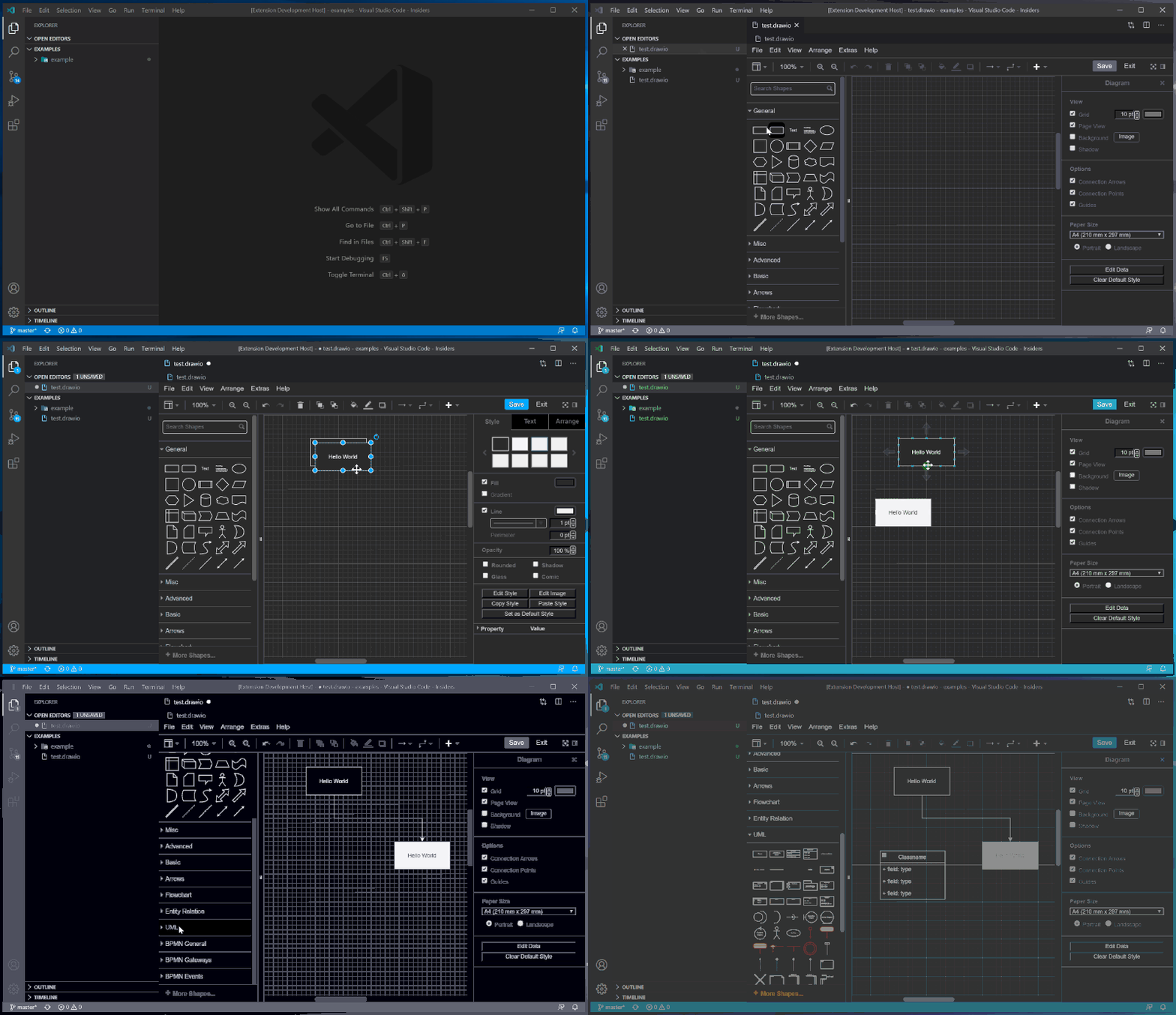
A standout feature of the Draw.io Integration extension is its unique approach to saving diagrams. You can save diagrams as drawio.png or drawio.svg files. These formats not only store the diagram as an image but also preserve the diagram data within the image metadata. This innovative feature means you can share diagrams as images viewable in any standard image viewer. If the recipients also use Draw.io or the hediet.vscode-drawio extension, they can even edit the diagrams, thanks to the original diagram data preserved in the image file.

Tips#
To truly maximize the use of Draw.io within VSCode, you should not only leverage the diagramming functionality but also manage and integrate your diagrams effectively into your projects. Here are a few tips and tricks:
- Save diagrams as
drawio.pngordrawio.svgfiles: Regularly saving your diagrams in these formats ensures you don’t lose your work. These formats also allow you (or others) to edit the diagrams later, courtesy of the diagram data stored within the image metadata.
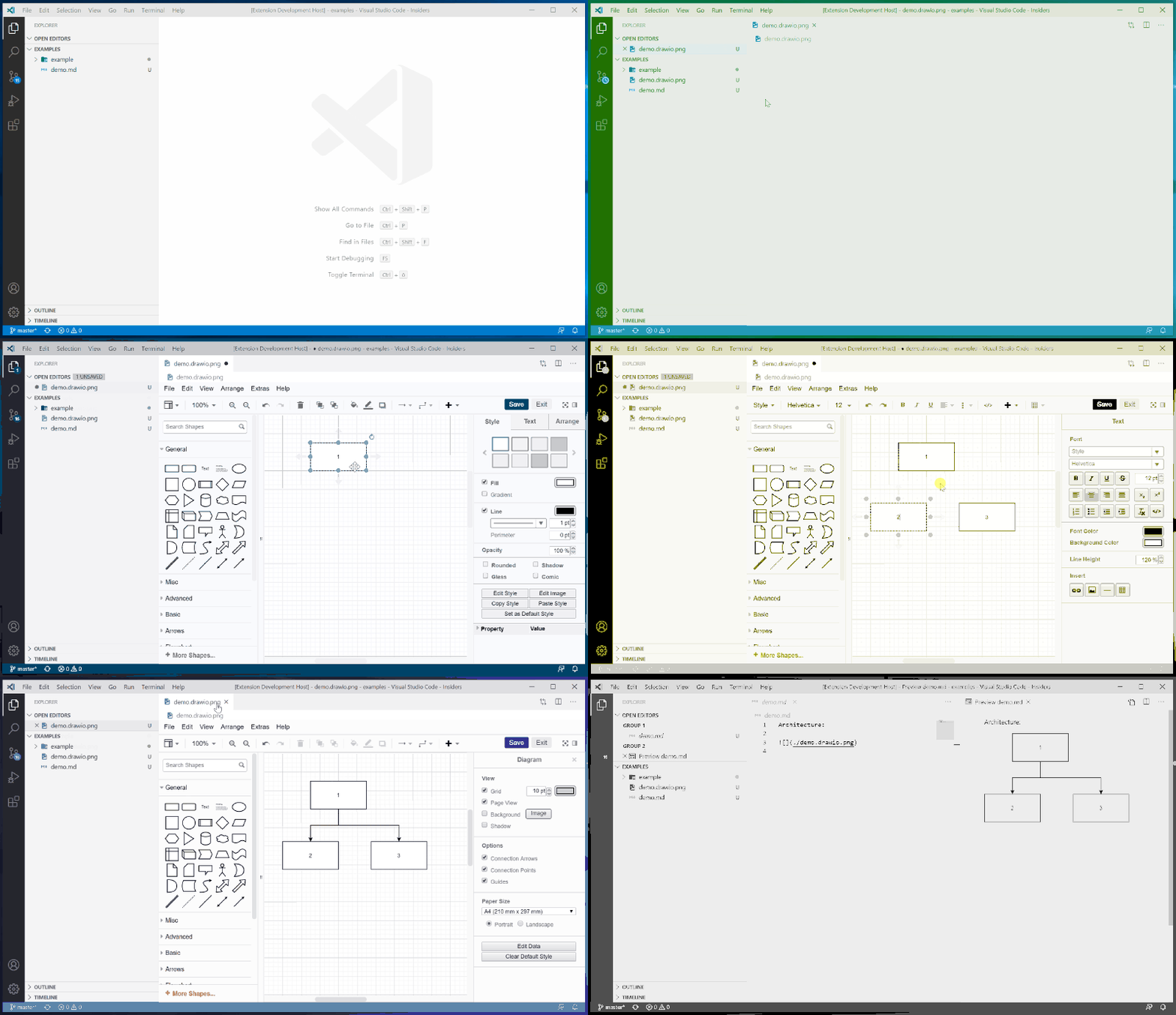
Integrate diagrams into your Git repository: After saving your diagrams as
drawio.pngordrawio.svgfiles, you can conveniently add them to your Git repository. This integration allows you to version control your diagrams alongside your code and share them with others through the repository.Reference diagrams directly in your Markdown files: Once your diagrams are stored in your Git repository, they can be directly referenced in your Markdown files. This includes README files, blog posts, or MARP presentations. To do this, use the standard Markdown image syntax,
, whereurlis the path to yourdrawio.pngordrawio.svgfile in the repository. This technique enables a seamless integration of visual content into your written material.Explore Draw.io’s extensive shape and icon libraries: Draw.io provides a vast library of shapes and icons that can help make your diagrams visually appealing and intuitive. Different shapes can represent various elements in your diagrams, enhancing their readability.
Use color and style strategically: Utilizing different colors and styles can aid in distinguishing between different elements in your diagrams. Strategic use of these features can improve the clarity of your diagrams and make them easier to interpret.
By adopting these tips and tricks, you can effectively manage your diagrams and seamlessly integrate them into your development workflow. This not only enhances communication within your team but also promotes a better understanding of the concepts you’re working with.
Other Features#
Besides the features I’ve covered so far, the Draw.io Integration extension also provides a host of other functionalities. These include:
- Offline support: By default, the extension uses an offline version of Draw.io.
- Themes: Multiple Draw.io themes are available for users to choose from.
- Collaboration: The extension supports collaborative editing of diagrams using VS Code Liveshare. Users can edit and present diagrams remotely, with participants able to see each other’s cursors and selections.
- Code link feature: The extension includes a code link feature where users can enable or disable linking nodes/edges with code spans. Double-clicking on a node with a label starting with “#” performs a workspace search for a matching symbol, allowing users to jump to its source code.
Conclusion#
The Draw.io Integration extension supports the integration of Draw.io into VSCode, providing a powerful and efficient way to create and manipulate diagrams. This feature-rich extension enables developers and other professionals to visualize their ideas and workflows without leaving their coding environment. Furthermore, the unique drawio.png and drawio.svg file formats ensure that your diagrams remain visually accessible and editable, making sharing and collaboration easier. This integration is a shining example of the flexibility and extensibility of the VSCode platform, demonstrating its ability to cater to a wide range of user needs, well beyond just writing code.