
Extending GitHub Copilot with reusable, shareable AI capabilities
Introduction#
GitHub Copilot’s extensibility story has evolved rapidly. From custom instructions to MCP servers, the platform has steadily added ways to customize how the AI assistant works. But until recently, sharing those customizations across projects and teams remained painful - submodules, manual file copying, and constant drift.
That changes with three interconnected features: Agent Skills, Plugins, and Marketplaces. Together, they form a complete ecosystem for creating, packaging, distributing, and discovering AI-powered developer tooling.
This post covers what each piece does, how they fit together, and how to build your own.
Agent Skills: Teaching Copilot New Tricks#
Agent Skills were introduced in December 2025. They let you teach Copilot how to perform specialized tasks in a specific, repeatable way.
What Is a Skill?#
A skill is a folder containing:
- A
SKILL.mdfile with instructions and metadata - Optional supporting scripts, templates, and reference files
- Tool and model configuration
When Copilot determines a skill is relevant to your prompt, it automatically loads the instructions and follows them.
Skill Structure#
.github/skills/
  csv-analysis/
    SKILL.md              # Instructions (required)
    scripts/
      analyze.py          # Supporting scripts
    templates/
      report.md           # Output templates
Writing a SKILL.md#
The SKILL.md file is the entry point. It uses YAML frontmatter for metadata and markdown for instructions:
---
name: csv-analysis
description: Analyze CSV files and generate statistical reports
tools:
  - powershell
  - view
  - create
---

## Instructions

When asked to analyze a CSV file:
1. Read the file and identify columns
2. Compute summary statistics per column
3. Detect missing values and outliers
4. Generate a markdown report with tables and findings
Where Skills Are Discovered#
Skills follow an open standard (agentskills.io) shared across leading AI coding tools. Each tool looks in slightly different locations:
| Location | Tool | Scope |
|---|---|---|
.github/skills/ | Copilot CLI, VS Code | Repository |
.claude/skills/ | Claude Code, Copilot | Repository |
.agents/skills/ | Codex CLI | Repository |
.gemini/skills/ | Gemini CLI | Repository |
~/.copilot/skills/ | Copilot CLI | User-level |
~/.claude/skills/ | Claude Code | User-level |
~/.agents/skills/ | Codex CLI | User-level |
~/.gemini/skills/ | Gemini CLI | User-level |
| Installed plugins | All tools | Global |
The SKILL.md format is identical across all tools - write once, discovered everywhere. If you’ve set up skills for Claude Code in .claude/skills/, Copilot picks them up automatically. Skills also work with the Copilot Coding Agent on GitHub.com.
Key Design Principle: On-Demand Loading#
Skills load only when relevant. You can define dozens of skills in a project, and Copilot will only load the ones that match the current task. This keeps context windows focused and avoids unnecessary token usage.

Plugins: Package Management for Copilot#
While skills solve the “how do I teach Copilot something new?” problem, plugins solve the “how do I share it?” problem.
What Is a Plugin?#
A plugin is a distributable package that bundles Copilot customizations into a single installable unit. Think of it as npm for your Copilot configurations.
A plugin can contain any combination of:
| Component | File Pattern | Purpose |
|---|---|---|
| Custom Agents | agents/*.agent.md | Specialized AI assistants with defined personas |
| Skills | skills/*/SKILL.md | Discrete callable capabilities |
| Hooks | hooks.json | Event handlers for agent lifecycle |
| MCP Servers | .mcp.json | Model Context Protocol integrations |
| LSP Servers | lsp.json | Language Server Protocol integrations |
Creating a Plugin#
Every plugin needs a plugin.json manifest in a .github/ subdirectory:
my-plugin/
  .github/
    plugin.json           # Required manifest
  agents/
    my-agent.agent.md
  skills/
    my-skill/
      SKILL.md
  hooks.json
The manifest declares what the plugin contains. Here’s the real plugin.json from the agent-skills demo repo:
{
  "name": "document-tools",
  "description": "Document processing toolkit with CSV analysis, report generation, and data profiling capabilities",
  "version": "1.0.0",
  "author": {
    "name": "Chris Ayers",
    "email": "noreply@chris-ayers.com"
  },
  "license": "MIT",
  "keywords": ["data", "csv", "analysis", "reporting"],
  "agents": [
    "./agents/data-analyst.agent.md"
  ],
  "skills": [
    "./skills/csv-analysis/"
  ]
}
Important details:
- The
namefield should only contain letters, numbers, and dashes - File paths are relative to the plugin root, not the
.github/directory - When layering a plugin onto an existing repo, paths may need
../../navigation
Why Plugins Over Manual Config?#
| Feature | Manual Configuration | Plugins |
|---|---|---|
| Scope | Single repository | Any project |
| Sharing | Copy/paste files | copilot plugin install |
| Versioning | Git history | Marketplace versions |
| Discovery | Searching repositories | Marketplace browsing |
| Updates | Manual tracking | copilot plugin update |
Marketplaces: App Stores for Plugins#
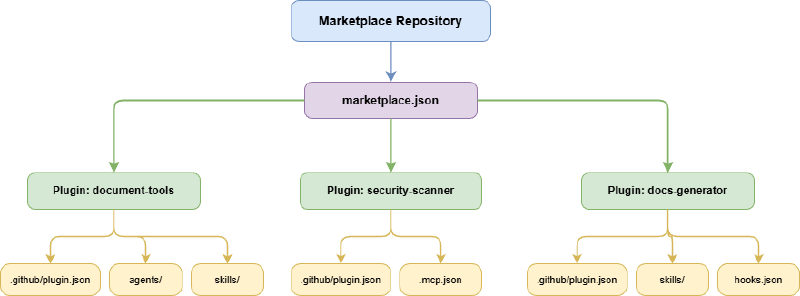
A marketplace is a Git repository that serves as a registry for available plugins. It’s a lightweight app store - a marketplace.json file that lists plugins with metadata.
Default Marketplaces#
Both VS Code and Copilot CLI ship with two marketplaces pre-configured:
| Marketplace | Description |
|---|---|
| copilot-plugins | Official GitHub plugins |
| awesome-copilot | Community-contributed plugins |
Creating a Marketplace#
Create .github/plugin/marketplace.json in a Git repository:
{
  "name": "my-team-plugins",
  "owner": {
    "name": "My Team",
    "email": "team@example.com"
  },
  "metadata": {
    "description": "Internal team plugin registry",
    "version": "1.0.0"
  },
  "plugins": [
    {
      "name": "dev-toolkit",
      "description": "Full-stack development tools",
      "version": "1.0.0",
      "source": "./plugins/dev-toolkit"
    }
  ]
}
Push to GitHub and you have a working marketplace.
Versioning with External Sources#
Plugins can reference external repositories with specific tags:
{
  "name": "external-tool",
  "version": "2.0.0",
  "source": {
    "source": "url",
    "url": "https://github.com/org/tool-plugin",
    "ref": "v2.0"
  }
}
This lets your marketplace curate plugins from multiple repositories, each pinned to a specific version.
Cross-Tool Compatibility#
One of the most powerful aspects of the emerging plugin ecosystem is cross-tool portability. The SKILL.md format follows an open standard shared across multiple AI coding tools.
Compatibility Matrix#
| Capability | Copilot CLI | VS Code | Claude Code | Codex CLI | Gemini CLI |
|---|---|---|---|---|---|
| Skills (SKILL.md) | Yes | Yes | Yes | Yes | Yes |
| Custom Agents | Yes | Yes | Yes | Partial | Partial |
| Plugin Manifest | .github/plugin.json | .github/plugin.json | .claude-plugin/plugin.json | N/A | Extensions |
| Marketplace | Yes marketplace.json | Yes Same | Yes Same concept | $skill-installer | gemini extensions |
| Hooks | Yes | Yes | Yes | No | No |
| MCP Servers | Yes | Yes | Yes | No | Yes |
| LSP Servers | Yes | Yes | Yes | No | No |
Making Plugins Work Everywhere#
To maximize compatibility, include both plugin manifests:
my-plugin/
  .github/
    plugin.json              # Copilot CLI + VS Code
  .claude-plugin/
    plugin.json              # Claude Code
  agents/
    my-agent.agent.md        # Shared across tools
  skills/
    my-skill/
      SKILL.md               # Universal format
  hooks.json                   # Copilot + Claude
For Codex CLI and Gemini CLI users, also provide skills at the repo root:
my-repo/
  .agents/skills/              # Codex CLI discovery
    my-skill/
      SKILL.md
  .gemini/skills/              # Gemini CLI discovery
    my-skill/
      SKILL.md
  plugins/
    my-plugin/                 # Full plugin for Copilot + Claude
  .github/plugin/
    marketplace.json           # Marketplace registry
Key Takeaway#
Skills are the most portable - the SKILL.md format works identically across all five tools. Plugins require dual manifests (.github/ + .claude-plugin/) for full Copilot and Claude support. Codex uses .agents/skills/ and community registries, while Gemini uses .gemini/skills/ and its own extensions system.
Installing and Managing Plugins#
Copilot CLI#
# Browse default marketplaces
copilot plugin marketplace list
copilot plugin marketplace browse awesome-copilot

# Add a custom marketplace
copilot plugin marketplace add my-org/internal-plugins

# Install from a marketplace
copilot plugin install dev-toolkit@awesome-copilot

# Install directly from a repository
copilot plugin install user/repo
copilot plugin install user/repo:plugins/subfolder

# Manage installed plugins
copilot plugin list
copilot plugin update my-plugin
copilot plugin uninstall my-plugin
VS Code#
Set
chat.plugins.enabledtotruein settingsAdd marketplaces to
chat.plugins.marketplaces:{ "chat.plugins.marketplaces": ["my-org/my-plugins"] }Browse with
@agentPluginsin the Extensions viewOr use Command Palette then Chat: Plugins
Tip: Marketplace settings must be at the user level - workspace settings won’t work.
Runtime Behavior#
After installation, components integrate automatically:
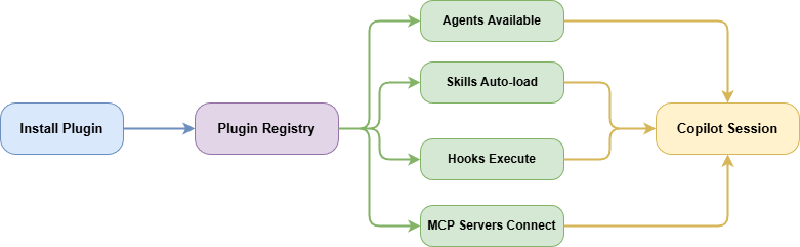
- Agents appear in your agent selection
- Skills load when relevant to your task
- Hooks fire at lifecycle events
- MCP servers extend the available tool set
No additional configuration needed.
Where Plugins Are Stored#
| Source | Location |
|---|---|
| Marketplace plugins | ~/.copilot/installed-plugins/MARKETPLACE/PLUGIN/ |
| Direct installs | ~/.copilot/installed-plugins/_direct/PLUGIN/ |
| VS Code (macOS) | ~/Library/Application Support/Code/agentPlugins/ |
| VS Code (Windows) | %APPDATA%/Code/agentPlugins/ |
Knowing where plugins land is useful for debugging — if a plugin isn’t loading, check these paths to verify installation succeeded.
Building a Plugin: Step by Step#
The agent-skills repo demonstrates a complete working example. Here’s the workflow:
1. Create the structure
mkdir -p my-plugin/.github
mkdir -p my-plugin/agents
mkdir -p my-plugin/skills/csv-analysis
2. Write the plugin manifest (my-plugin/.github/plugin.json)
Note: paths are relative to the plugin root, not the .github/ directory, so they start with ../.
3. Define an agent — a persona with specific tools and a workflow (see agents/data-analyst.agent.md in the demo repo for a full example).
4. Define a skill — a focused, on-demand capability with a SKILL.md frontmatter declaring its name, description, and required tools.
5. Add a hooks.json to fire notifications or setup steps at lifecycle events:
{
  "hooks": {
    "subagentStart": [
      {
        "command": "echo 'Document tools plugin loaded — data analysis capabilities active'",
        "description": "Notify when document tools plugin activates"
      }
    ]
  }
}
6. Publish as a marketplace — push the repo to GitHub, then anyone can register it:
copilot plugin marketplace add codebytes/agent-skills
copilot plugin install document-tools@agent-skills
That’s it. The agent and skills are now available across every project.
Security Considerations#
The plugin system operates within Copilot’s standard permission framework:
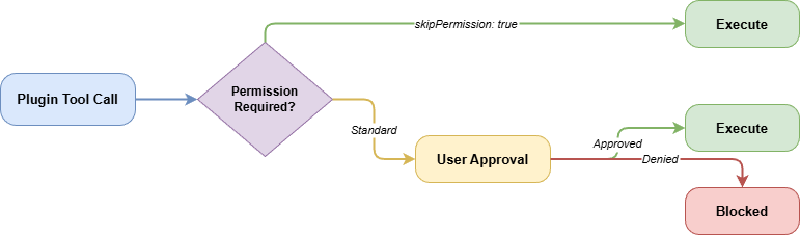
- Folder trust - Repository-level hooks only load after user confirms trust
- Tool permissions - Standard approval prompts for plugin tools
- skipPermission - Authors can mark known-safe operations to skip prompts
- MCP allowlists - Restrict servers with
MCP_ALLOWLISTfeature flags - Review before install - Always inspect unfamiliar plugins before installing
Best Practices#
- Start with existing plugins - Browse
awesome-copilotandcopilot-pluginsbefore building your own - Keep plugins focused - “Rails development” is better than “everything”
- Test with CLI first - Better error messages than VS Code for debugging
- Version with tags - Pin external sources to specific refs
- Use for team standards - Publish internal plugins for consistent tooling
- Update regularly -
copilot plugin updatefor latest improvements - Review what you install - Plugins run code on your machine
Known Limitations (Preview)#
As of early 2026, these features are still in preview:
- VS Code settings scope: Marketplaces must be user-level, not workspace
- Dev containers: Plugin installation may not work inside containers
- Silent failures: Manifest errors cause feeds to silently not appear
- Aggressive caching: VS Code caches feed details; may need reload or alternate URL format
- Branch installs: CLI doesn’t yet support installing from specific branches directly
Use VS Code Insiders for the latest fixes, and validate with Copilot CLI before VS Code.
The Big Picture#
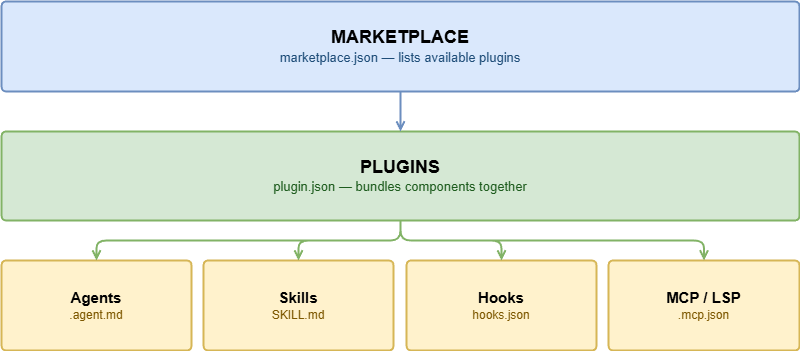
The ecosystem follows a clear layering:
- Skills teach Copilot specific tasks
- Agents provide specialized personas
- Plugins package everything together
- Marketplaces make it all discoverable
Resources#
- Demo Repo: codebytes/agent-skills — Complete working plugin + marketplace example
- GitHub Docs: About CLI Plugins
- awesome-copilot: Installing and Using Plugins
- GitHub Changelog: Agent Skills
- copilot-plugins Registry
- awesome-copilot Marketplace